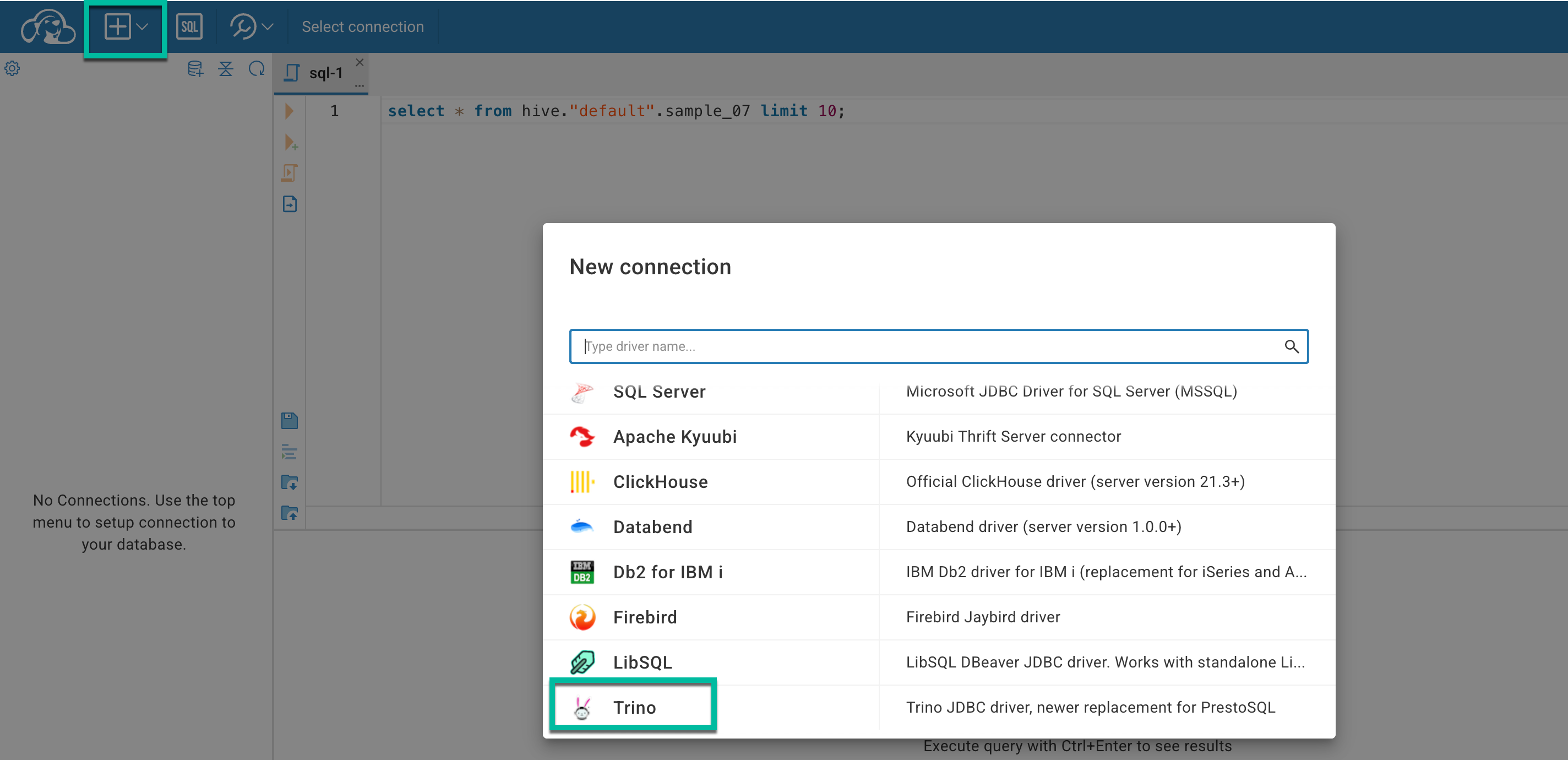
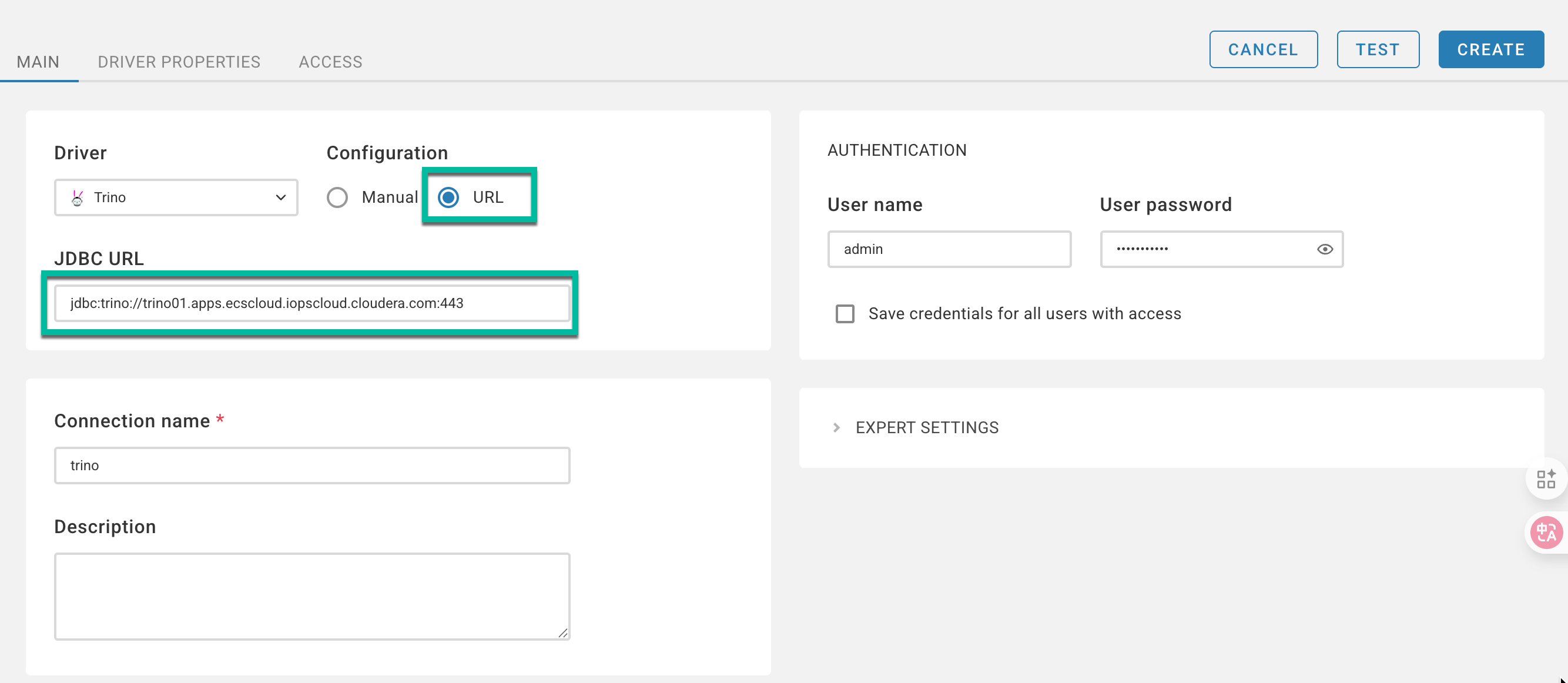
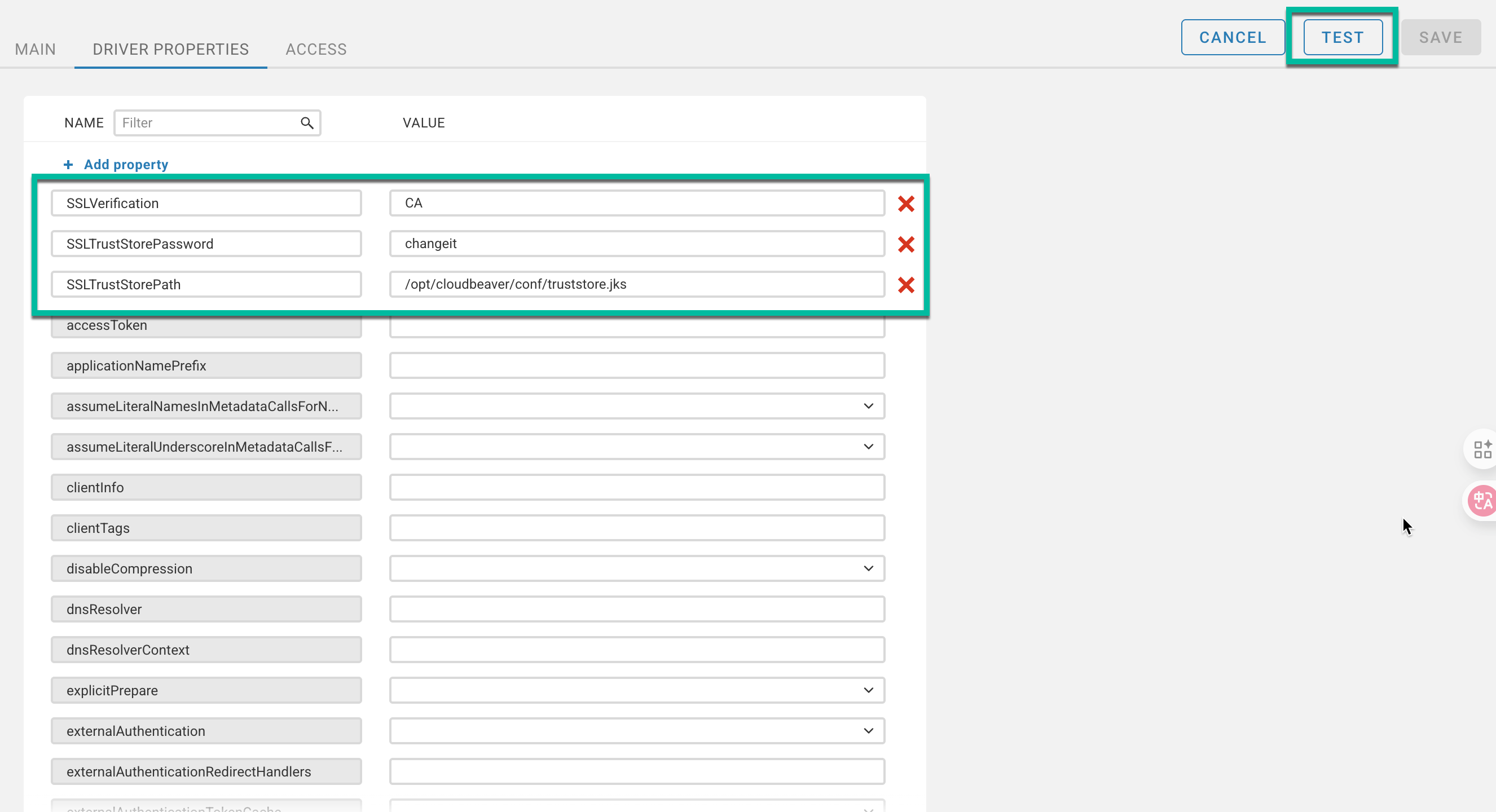
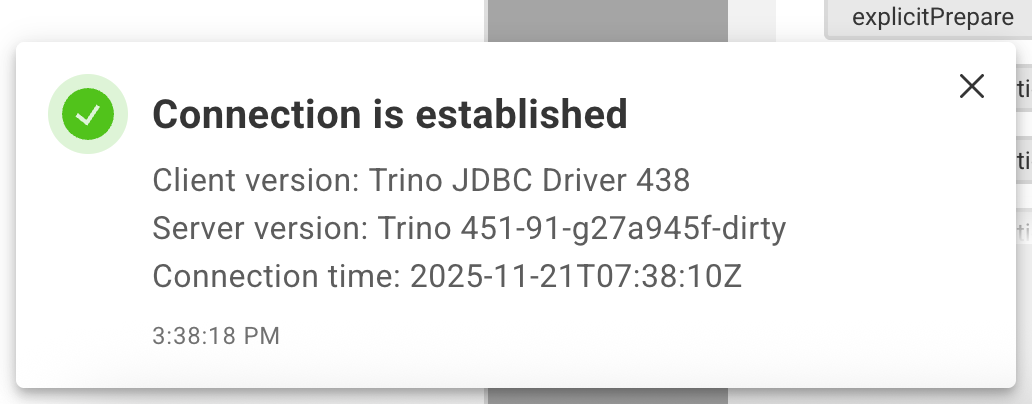
Cloudera Data Services On Premises 1.5.5 SP1 introducd support for creating and managing Trino Virtual Warehouses. This enables you to leverage Trino’s powerful distributed SQL query engine to efficiently query large datasets across heterogeneous data sources.
Trino is in Technical Preview and is not ready for production deployments. Cloudera recommends trying this feature in test or development environments and encourages you to provide feedback on your experiences.
3. Creating Trino Virtual Warehouse
Before you begin:
Activate your environment for use in CDW
Configure LDAP authentication for CDW
Grant the DWAdmin role to the user or group that needs to create a Virtual Warehouse
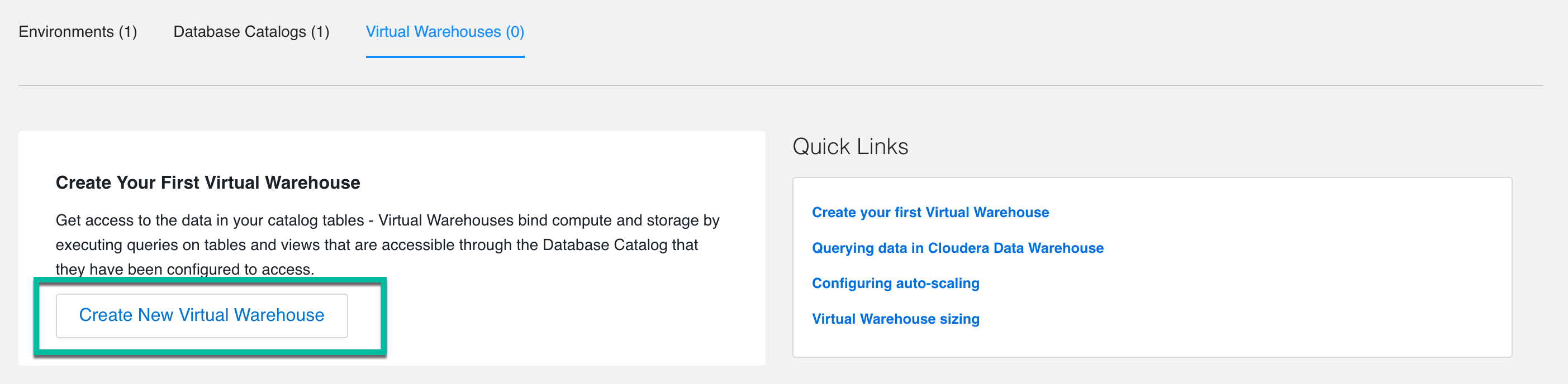
From the Cloudera Data Warehouse Overview page, click the Virtual Warehouses tab and click New Virtual Warehouse.
Create the new Trino Virtual Warehouse:
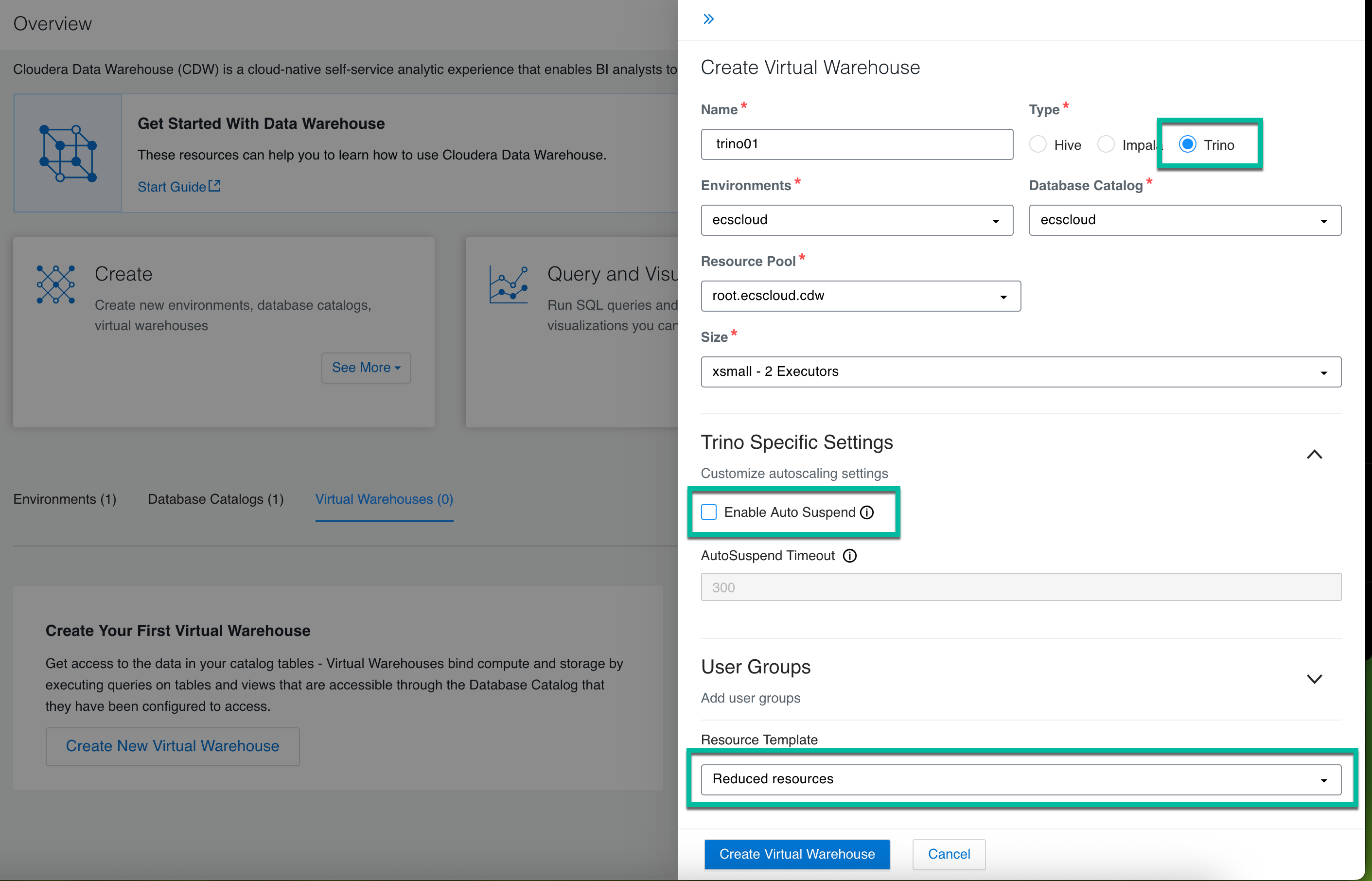
Select the Trino type of Virtual Warehouse.
Select the Environment and Database Catalog for this Virtual Warehouse.
Select the Resource Pool that allows resources to be allocated for the Virtual Warehouse.
Select the Size of your Trino Virtual Warehouse.
Uncheck the “Enable Auto Suspend” checkbox so that VW can provide permanent access.
Select a Kubernetes Resource Template for the Virtual Warehouse.
Click Create Virtual Warehouse.
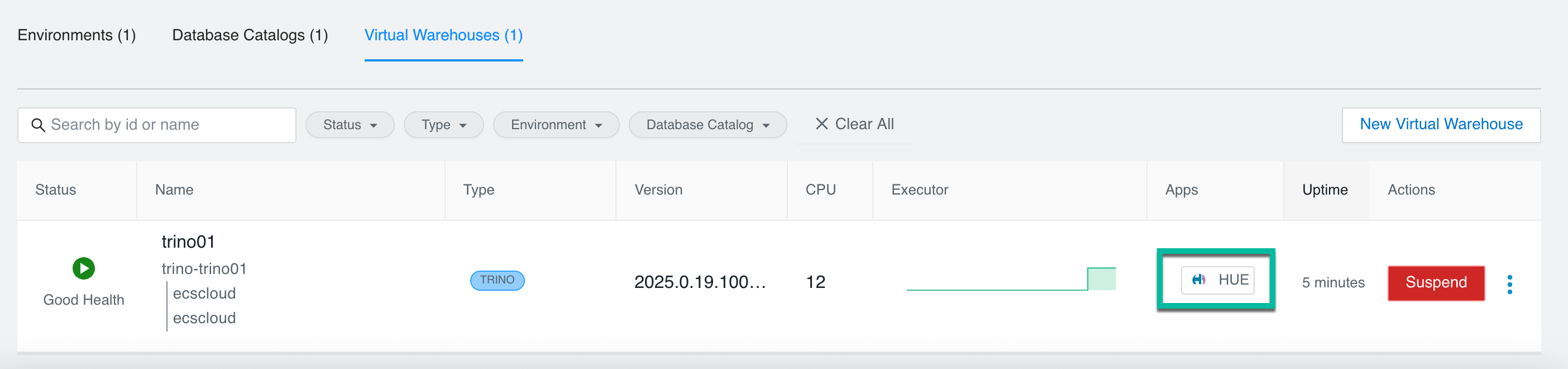
You can start running workloads in the new Trino Virtual Warehouse.
4. Querying data via Trino Virtual Warehouse
4.1. Adding user admin to the relevant Ranger service policies
In Cloudera Manager, click Clusters > Ranger > Ranger Admin Web UI, enter your username and password, and then click Sign In.
From the Service Manager page, click the cm_trino service.
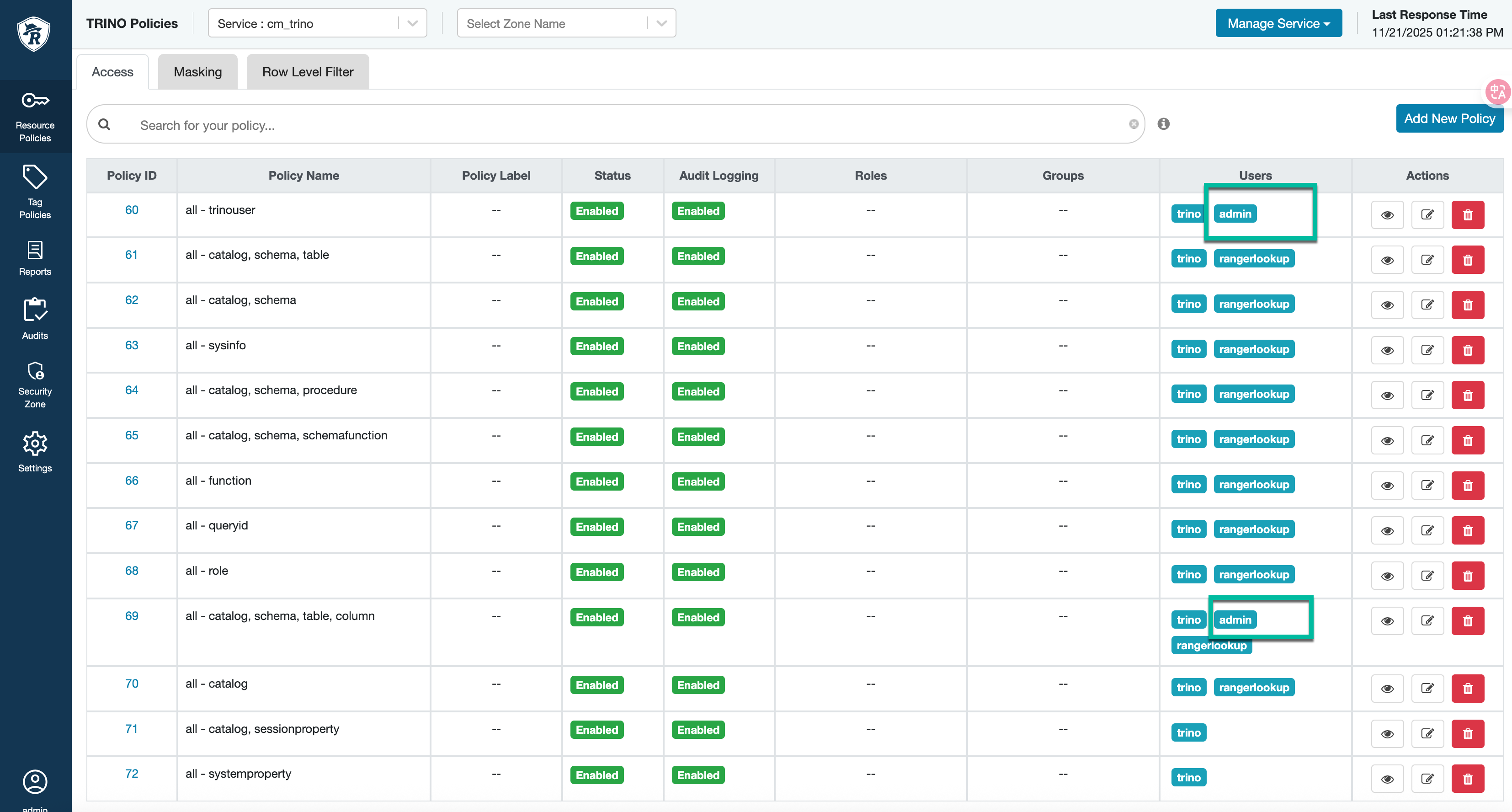
In the TRINO Policies page of the cm_trino service, click edit against the following policies and include the logged-in user or resource owner in the Allow Conditions:
all – trinouser
all – catalog, schema, table, column
Click Save to apply the changes.
4.2. Submitting queries with Hue
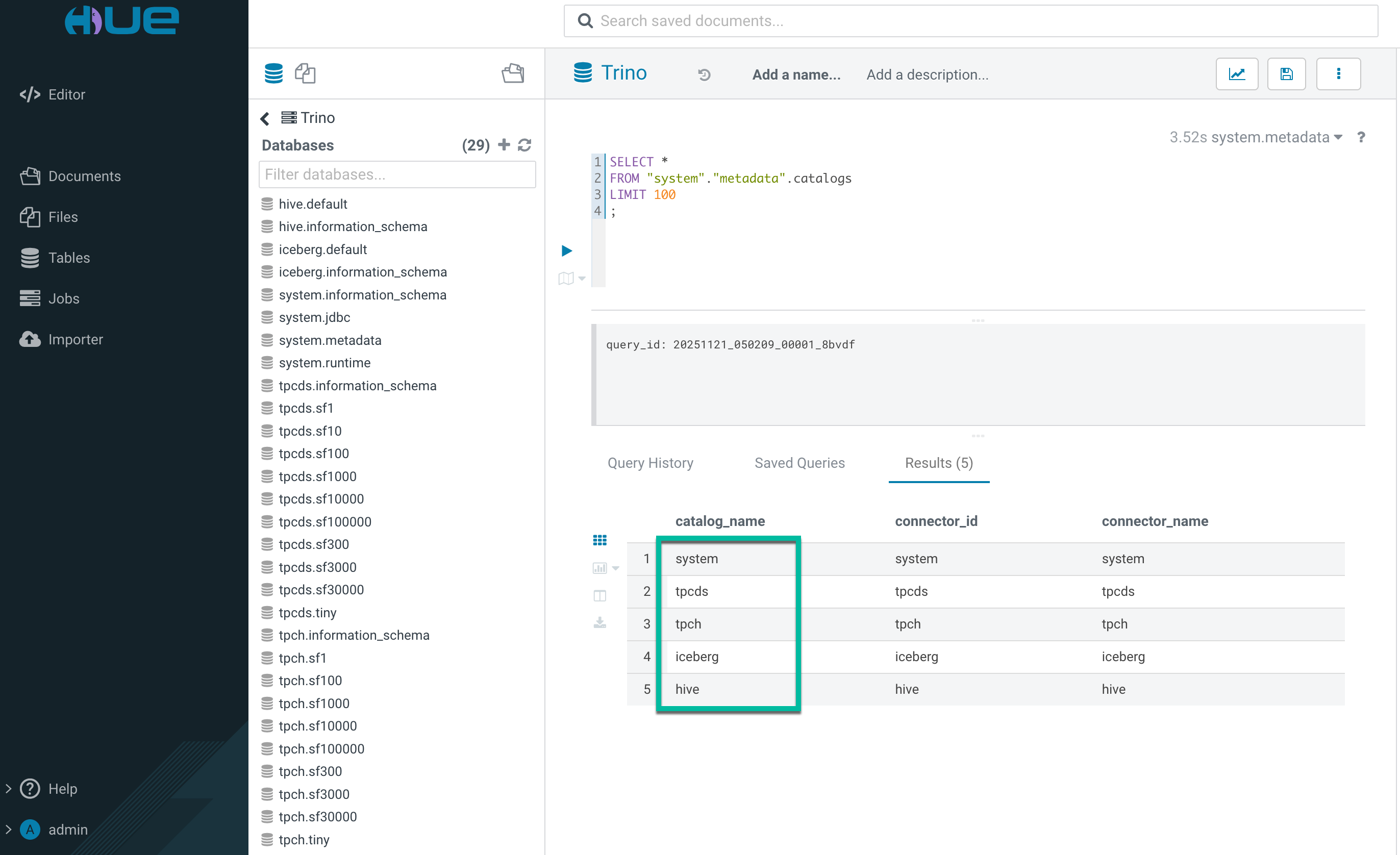
You can write and edit queries for Trino Virtual Warehouses in the Cloudera Data Warehouse service by using Hue.
Click a database to view the tables it contains.
Type a query in the editor panel and click to run the query.
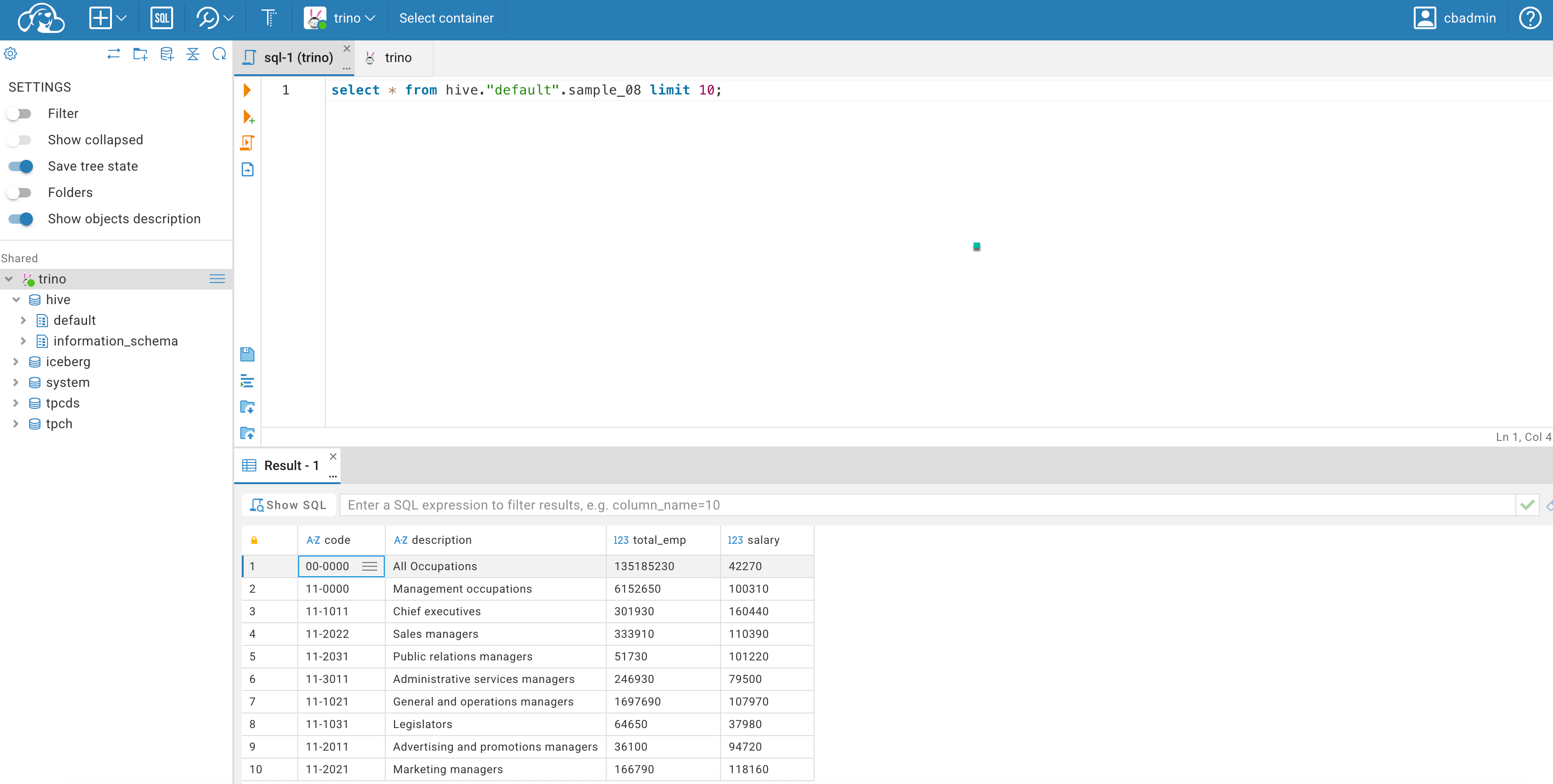
The built-in catalog includes: system, tpcds, tpch, iceberg, hive.
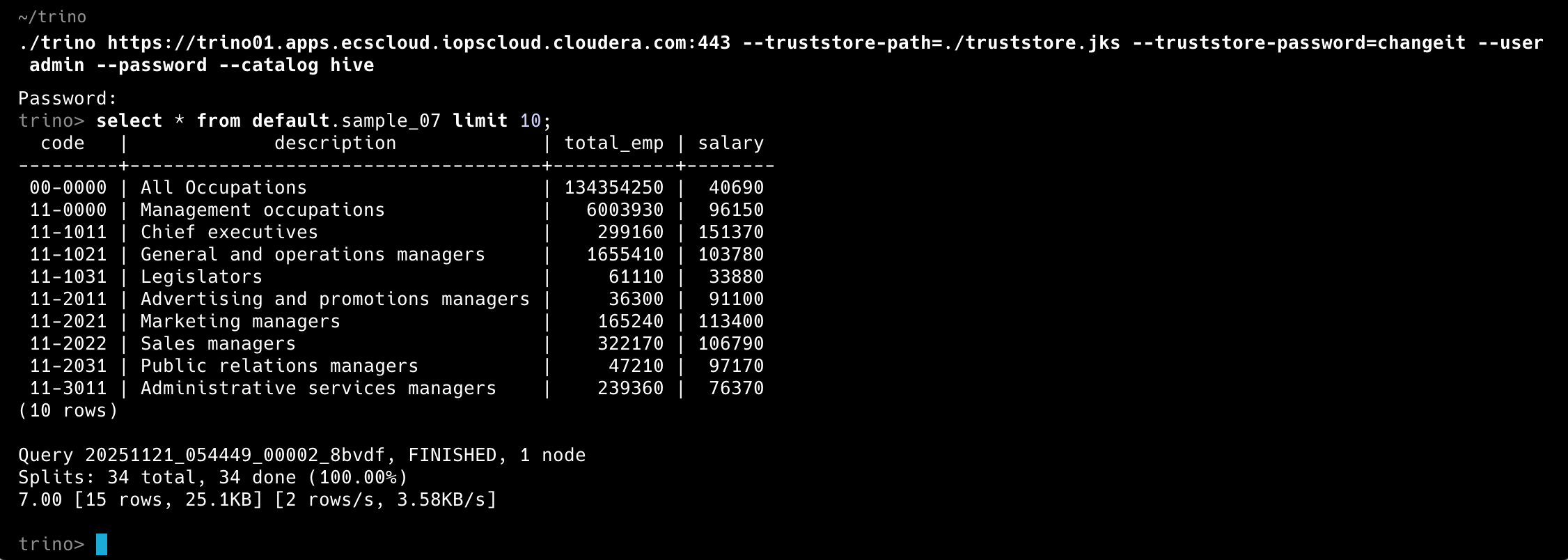
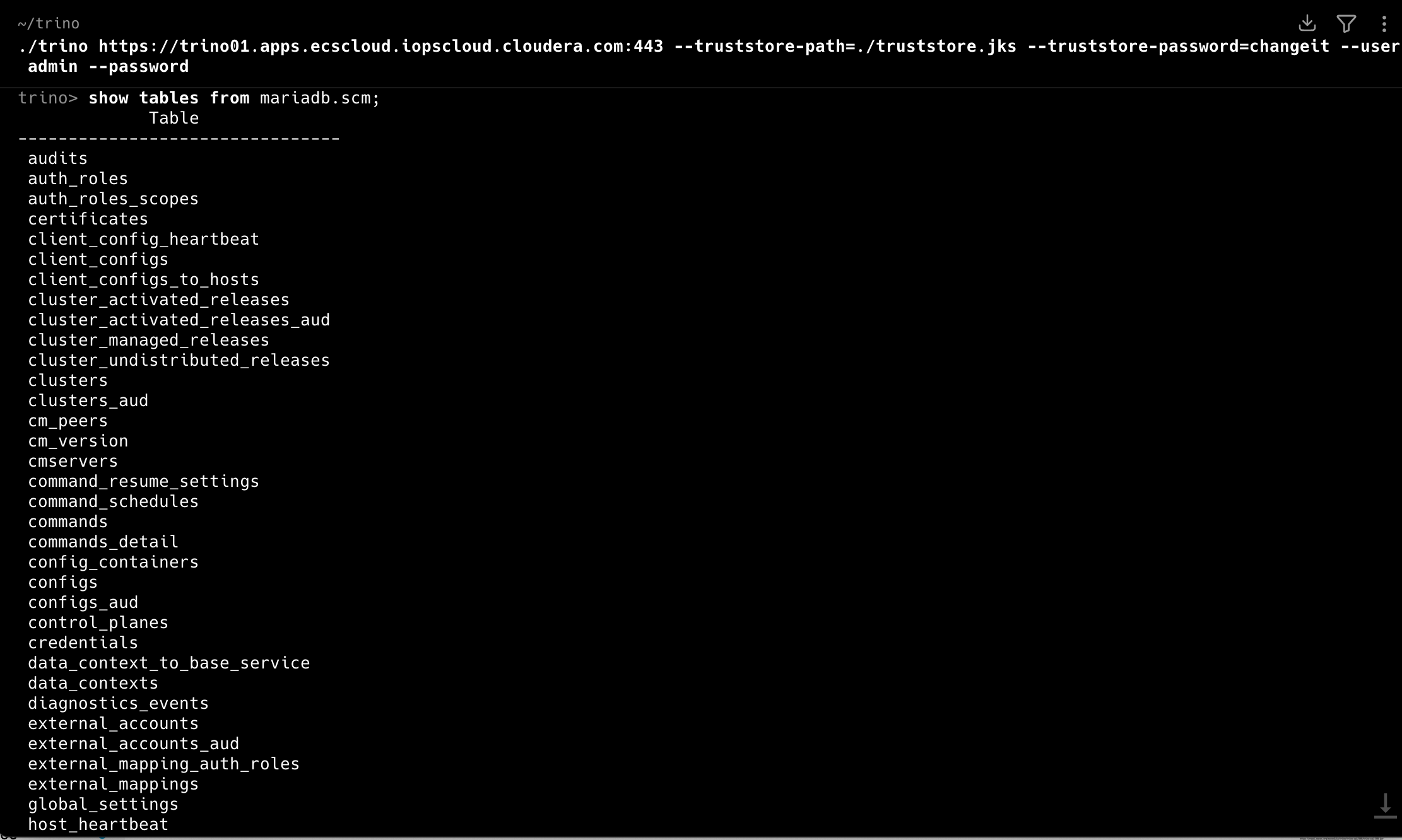
4.3. Submitting queries with Trino CLI
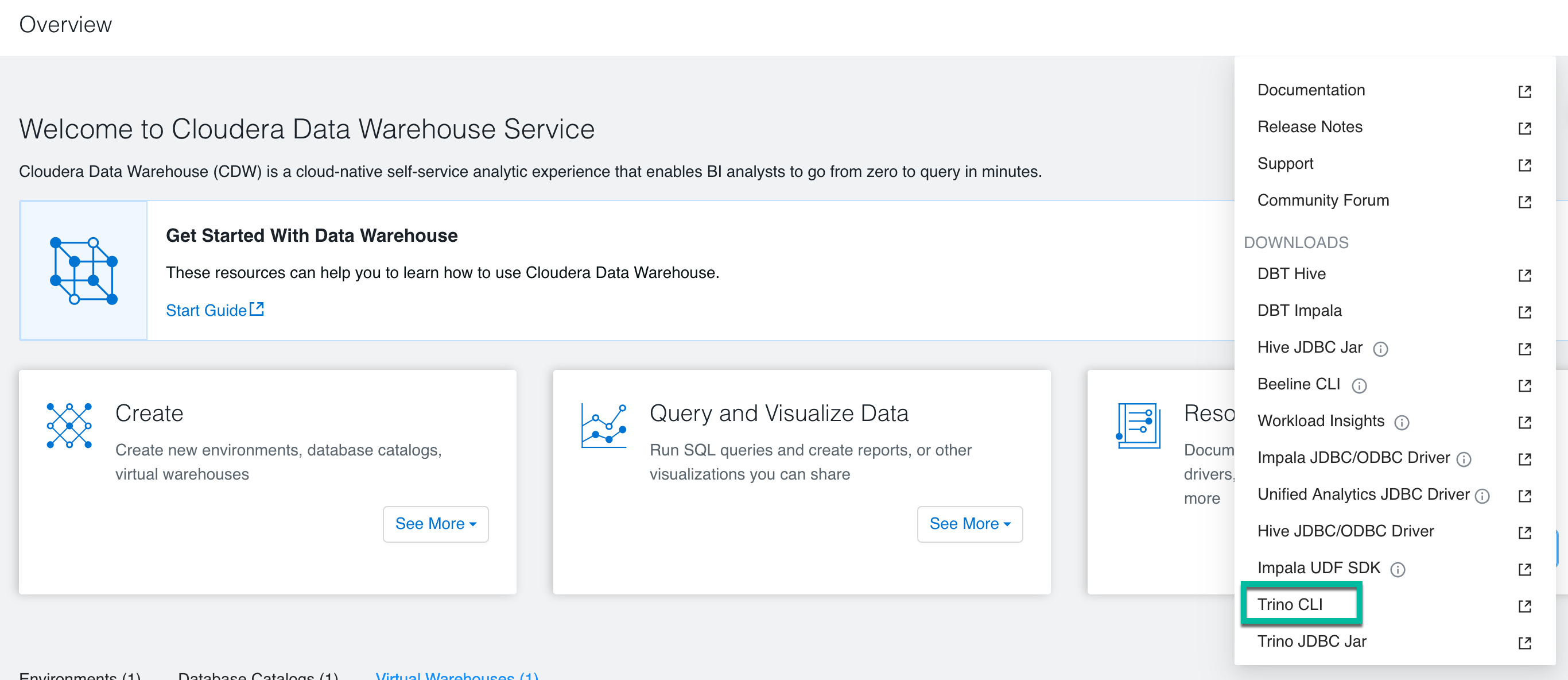
Log in to the Cloudera web interface and navigate to the Cloudera Data Warehouse service. In the Overview page of the Cloudera Data Warehouse, click See More in the Resources and Downloads tile. Select Trino CLI and click to download the trino-cli-executable.jar file.
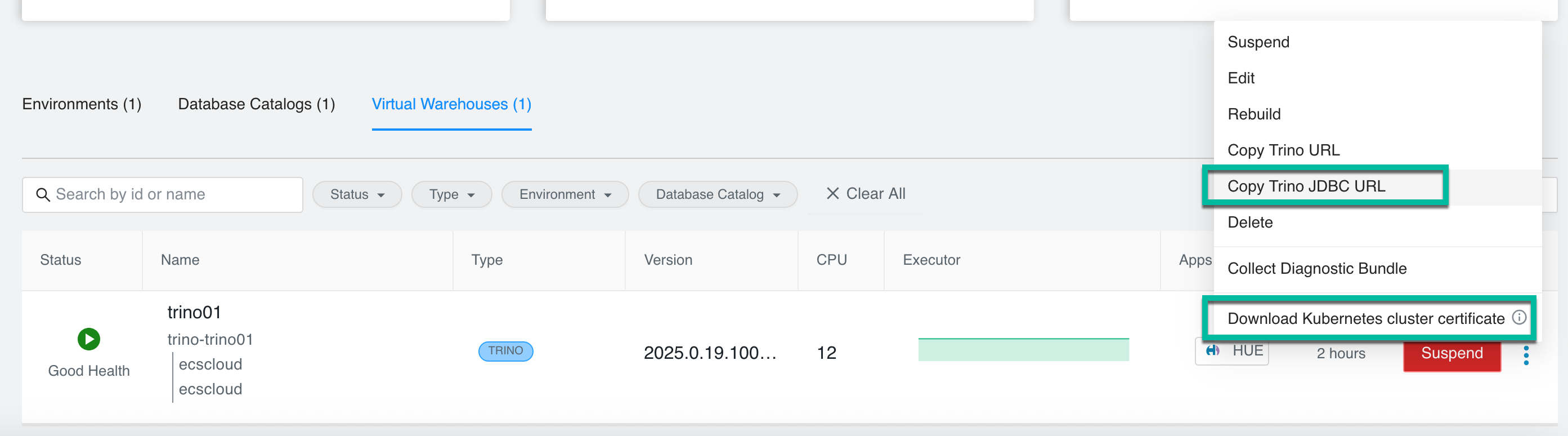
In the Data Warehouse service Overview page, for the Virtual Warehouse you want to connect to the client, click and select Copy Trino URL and Download Kubenetes cluster certificate.
5. Ranger authorization for Trino Virtual Warehouses
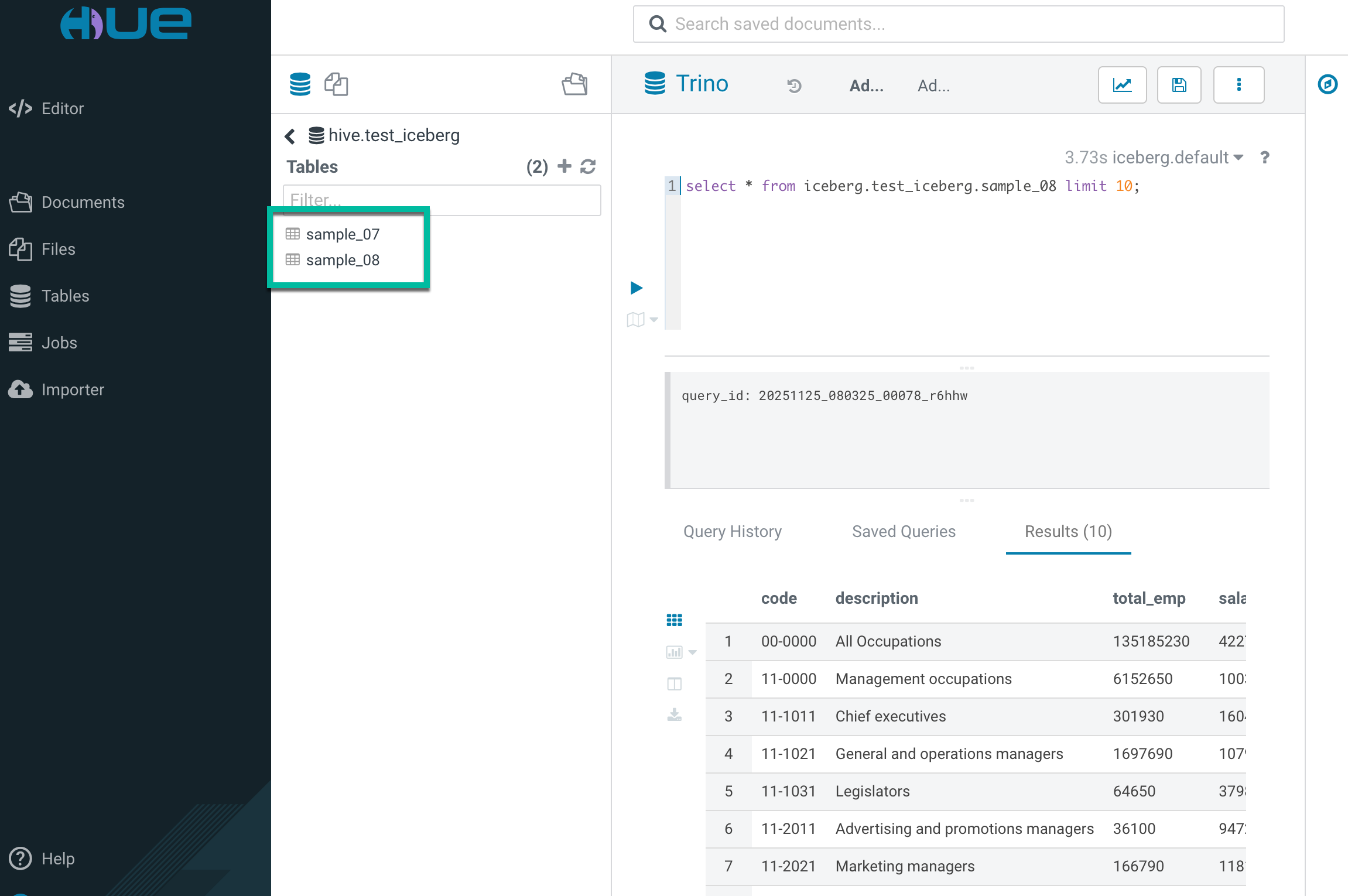
5.1. Create iceberg tables with Hue
create schema iceberg.test_iceberg;
CREATE TABLE iceberg.test_iceberg.sample_07
(code varchar, description varchar, total_emp integer, salary integer)
WITH (
format = 'PARQUET'
);
CREATE TABLE iceberg.test_iceberg.sample_08
(code varchar, description varchar, total_emp integer, salary integer)
WITH (
format = 'PARQUET'
);
insert into iceberg.test_iceberg.sample_07
select * from hive.default.sample_07;
insert into iceberg.test_iceberg.sample_08
select * from hive.default.sample_08;select * from iceberg.test_iceberg.sample_07 limit 10;select * from iceberg.test_iceberg.sample_08 limit 10;
5.2. Using resource-based column masking for Trino
Create a resource-based column masking policy from the Masking tab in the Trino Policies page.
The query results on iceberg table were as expected.
5.3. Using row-level filtering for Trino
Create a row-level filter policy from the Row Level Filter tab in the Trino Policies page. You can then set filters for specific users, groups, roles, and specify a filter expression. The filter expression must be a valid WHERE clause for the table or view, such as code='13-0000'.
The query results on iceberg table were as expected.
5.4. Using tag-based column masking for Trino
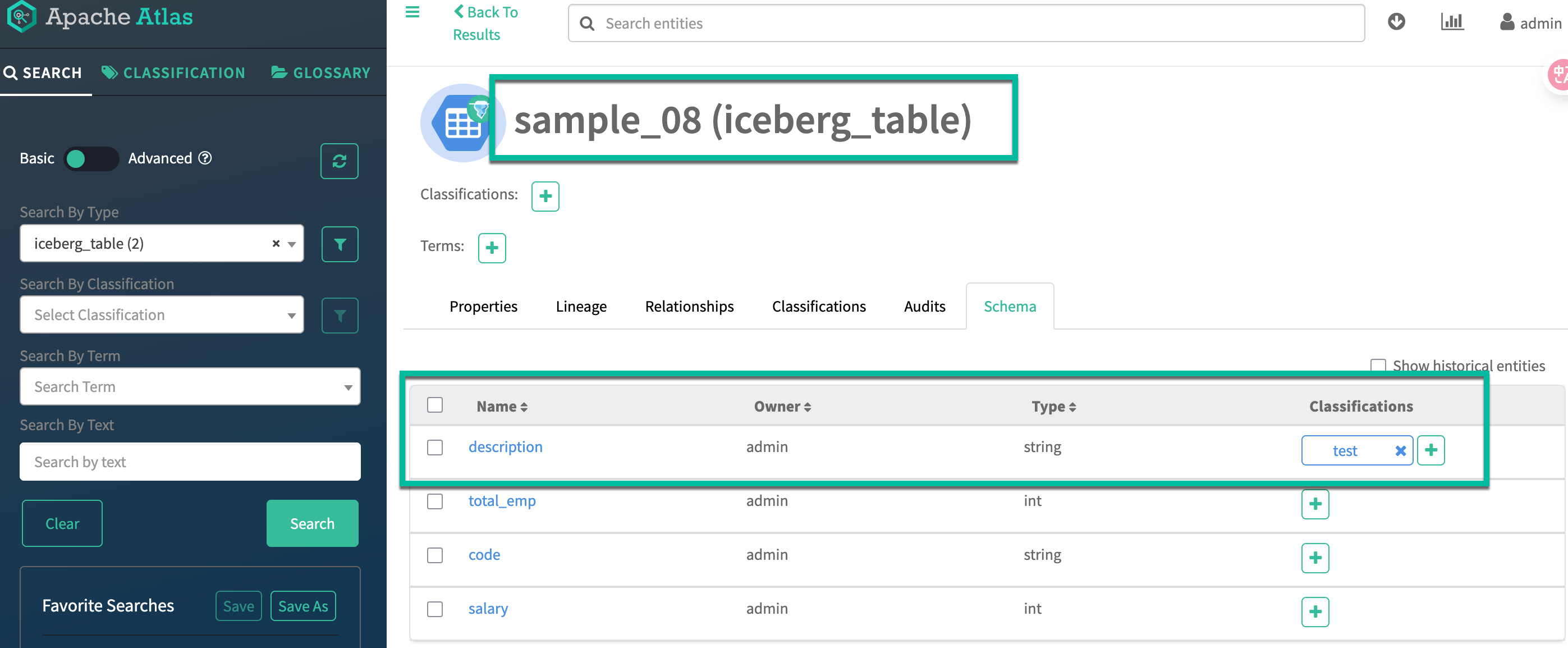
Add the classification test to the column description of iceberg table test_iceberg.sample_08 in the Atlas UI.
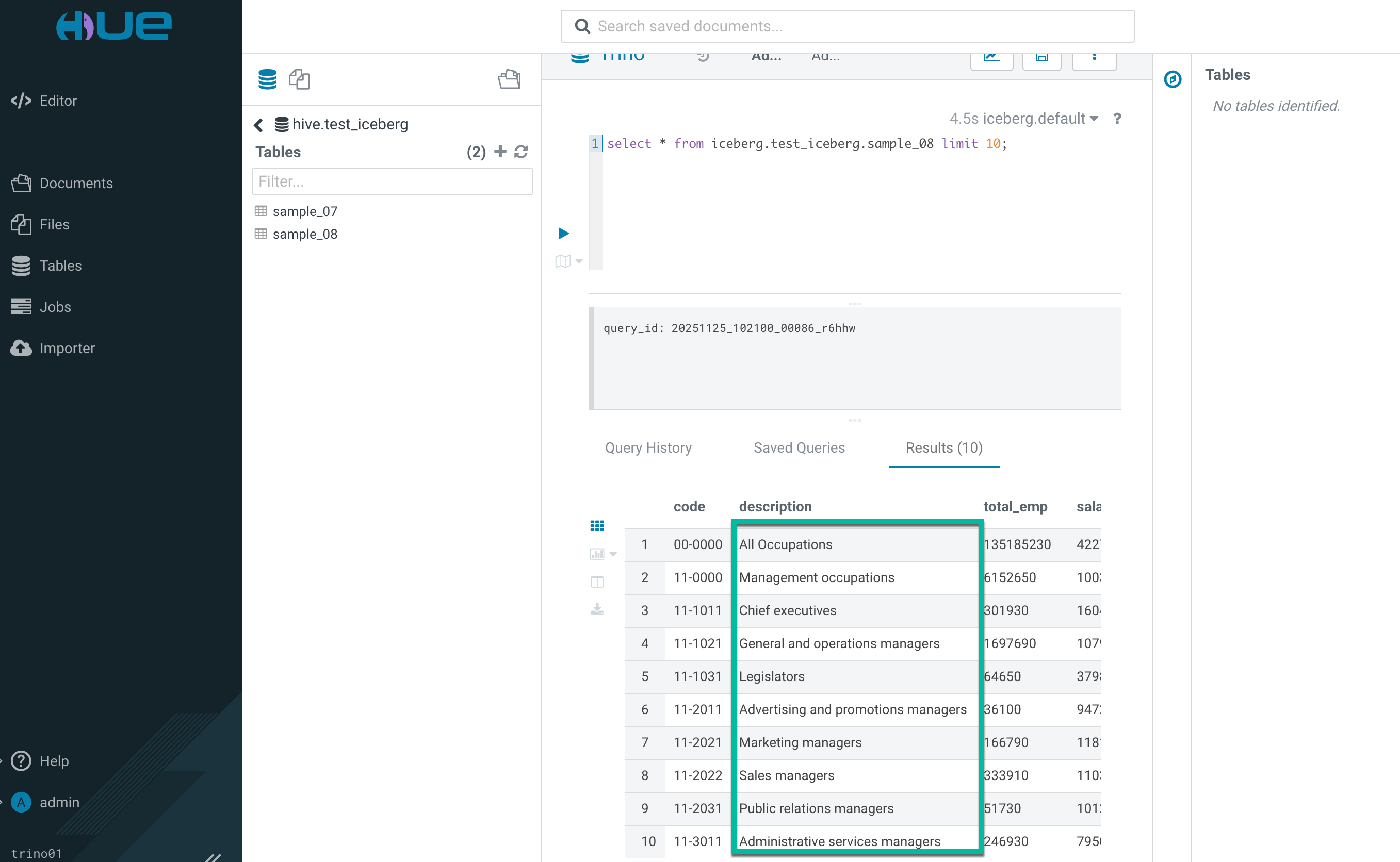
Create a tag-based column masking policy from the Masking tab in the TAG Policies page.
The masking rule is not working. This is because the current version does not support it.
6. Configuring Federation Connectors
You can use Cloudera Data Warehouse to configure a connector for a data source, enabling a Trino Virtual Warehouse to access the data source. Cloudera enables you to configure connectors for the following data sources:
PostgreSQL
MySQL
Snowflake
AWSRedshift
Hive
Iceberg
Oracle
MariaDB
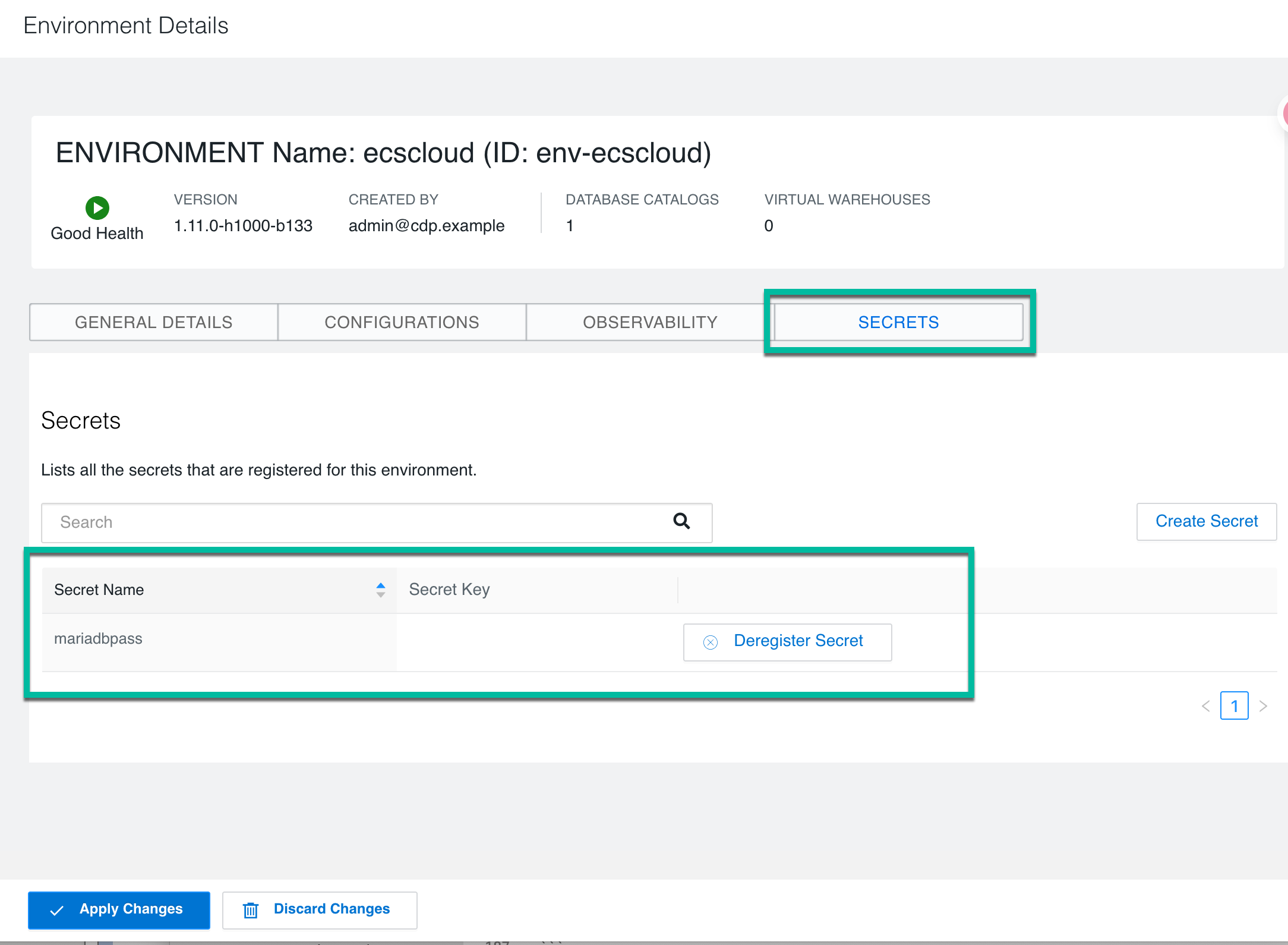
You must register a secret for your Environment:
From the Overview page, click the Environments tab and identify the Environment against which you want to register the secret, and then click > Edit.
In the Environment details page, click the SECRETS tab.
Click Create Secret and enter the following information in the Create Secret modal:
Enter a name for the secret.
Enter a value for the secret.
Click Create and then click Apply Changes. The registered secret is listed in the Secrets page and can be used while creating a connector.
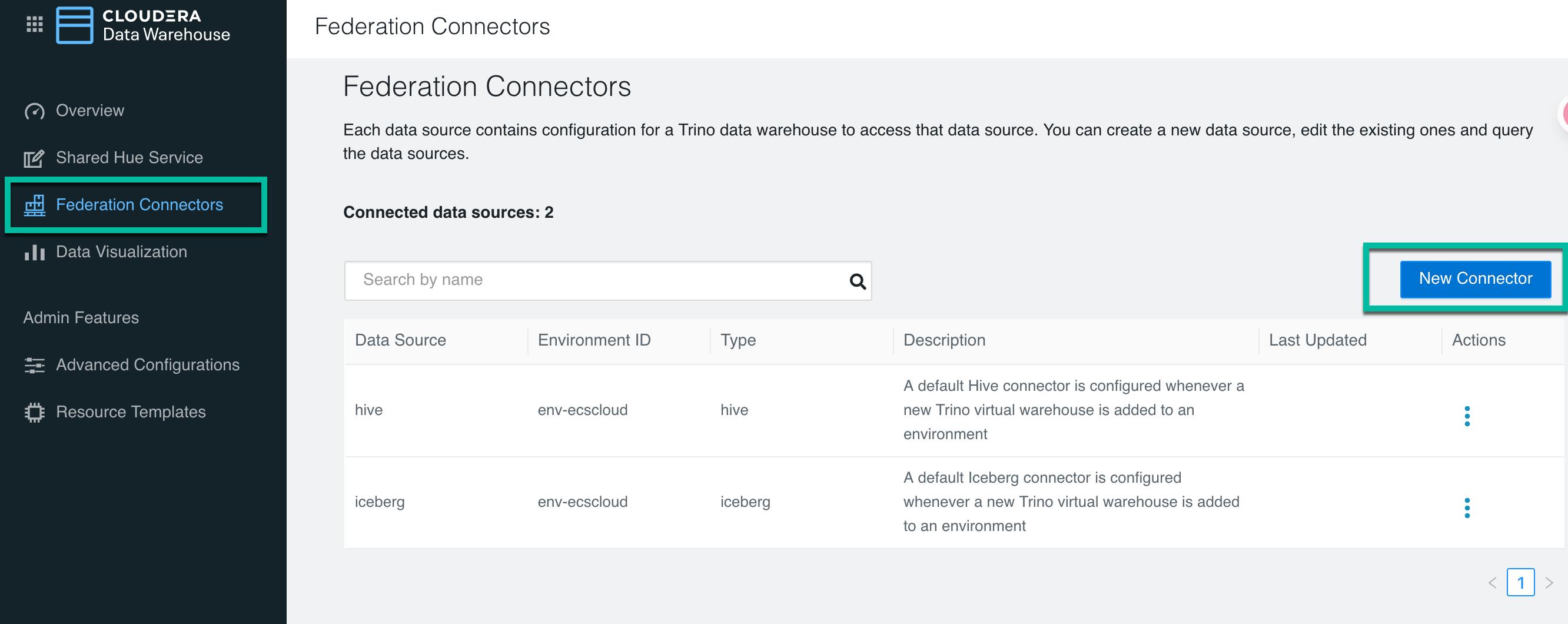
Log in to the Cloudera Data Warehouse service and click Federation Connectors. The Federation Connectors page is displayed that lists all the currently configured connectors. Click New Connector to create a new data source.
In the Data Source Type page, select MariaDB and then click Next.
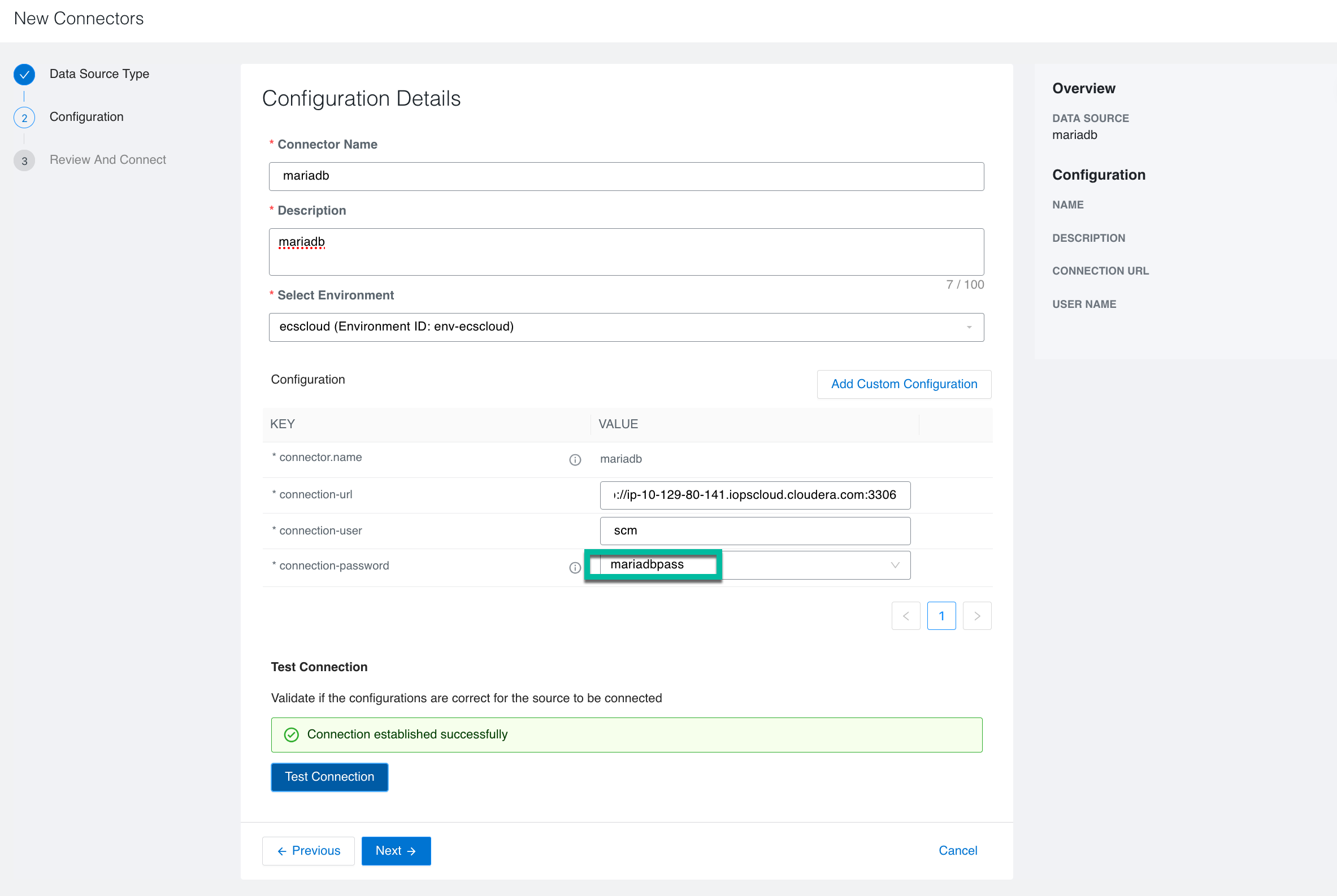
In the Configuration Details page, enter the following information:
Provide a name and description for the connector.
Select the appropriate environment.
Enter the appropriate URL to connect to the required data source.
Enter the connection user name and select a registered secret.
Click Test Connection to verify if the configurations are correct to establish a successful connection to the data source.
The connector is created successfully and is listed in the Federation Connectors page.
Associating connectors to a Virtual Warehouse:
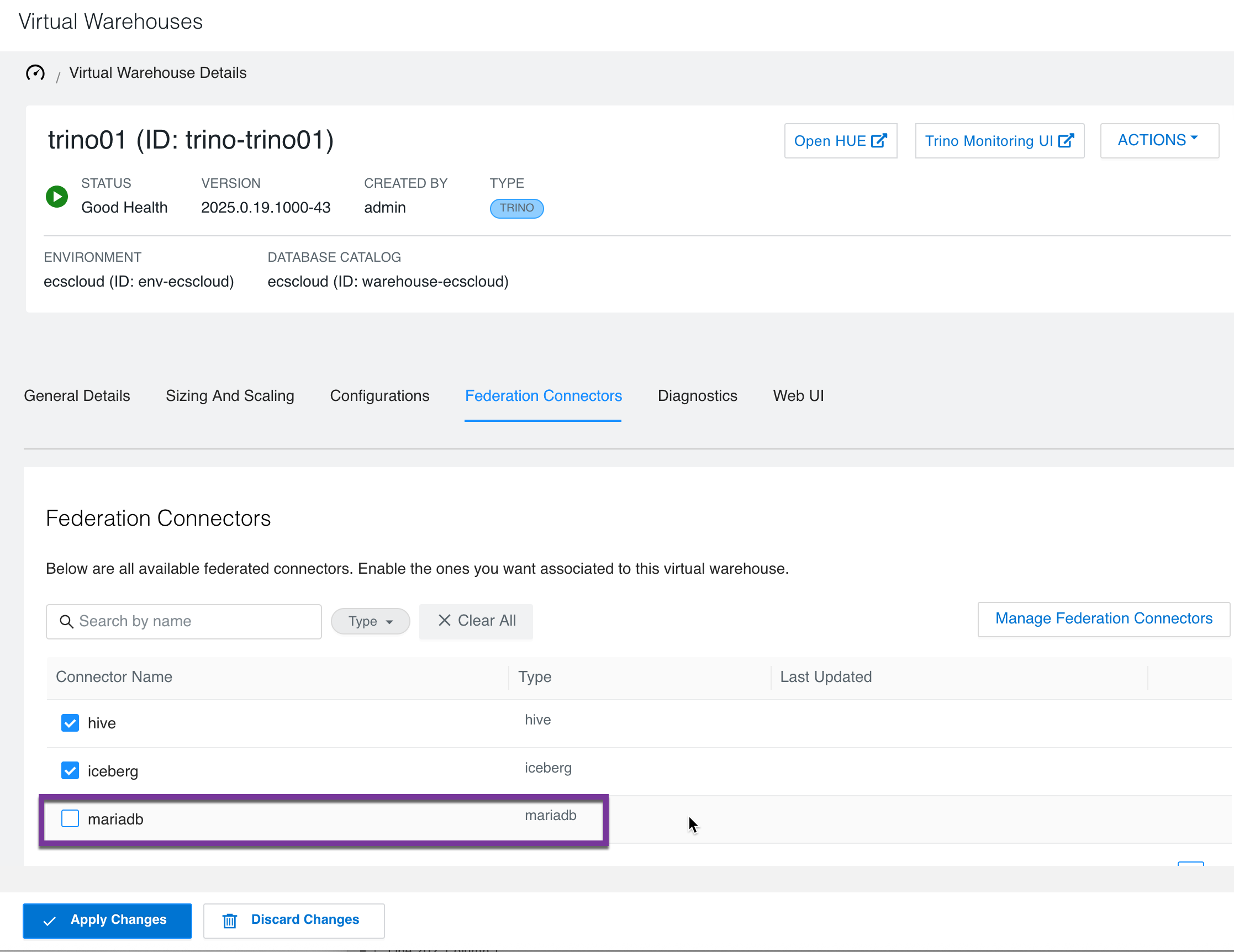
Log in to the Cloudera Data Warehouse service. From the Overview page, click the Virtual Warehouses tab and click > Edit against the required Trino Virtual Warehouse.
In the Virtual Warehouse details page, click the Federation Connectors tab.
Select the connector mariadb that is not associated with the Virtual Warehouse.
Click Apply Changes.
The connector is associated with the Virtual Warehouse and you can now query data from the respective data source.
7. Query Monitoring
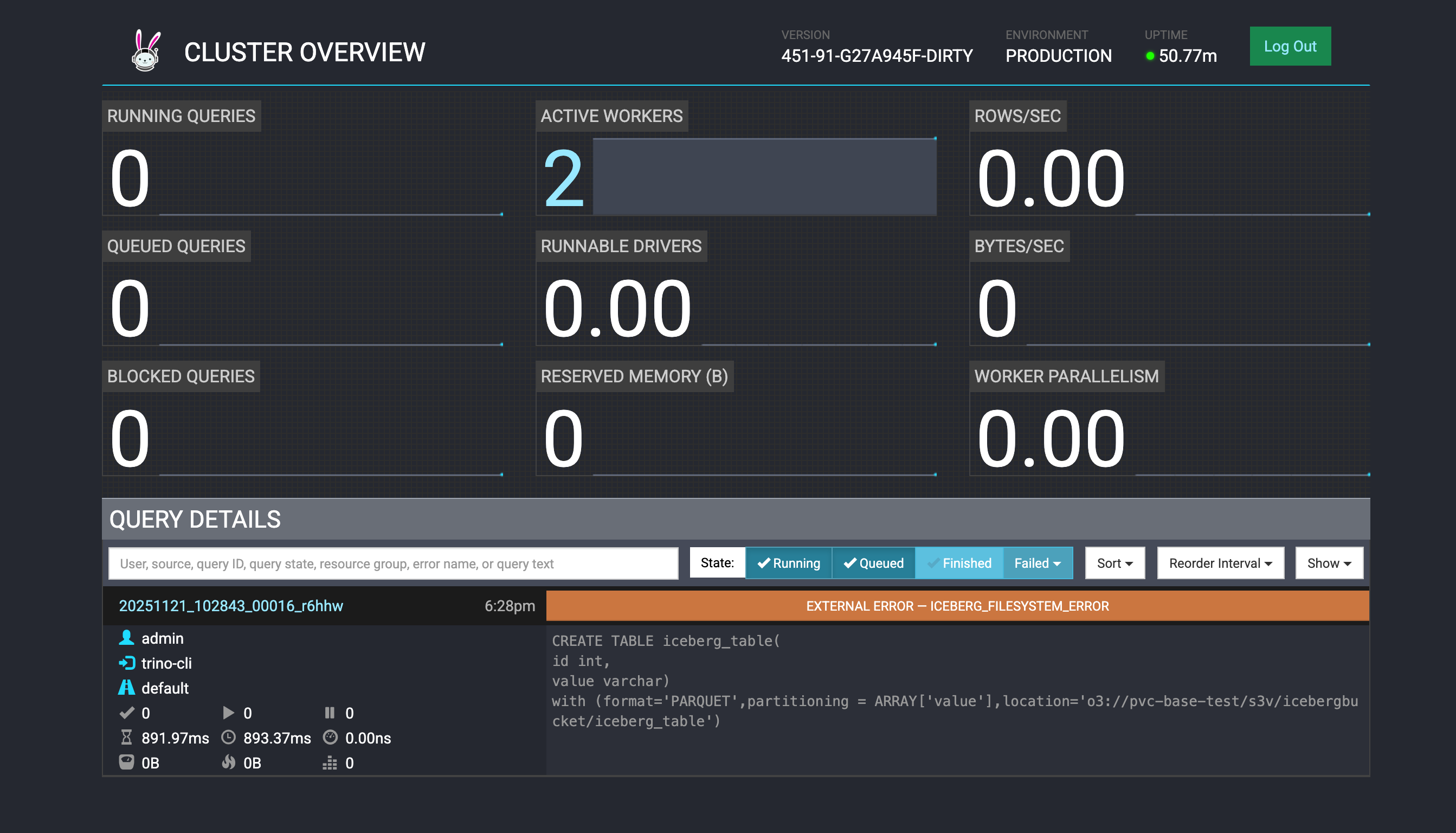
Trino Coordinator Web UI https://trino01.apps.ecscloud.iopscloud.cloudera.com:443/ui/ provides a lightweight, real-time interface that helps administrators and developers monitor and manage the state of a Trino cluster.
Monitor Running and Completed Queries
Displays all active, queued, and finished queries.
Shows query details such as SQL text, execution stages, tasks, memory usage, and performance metrics.
Helps identify slow or blocked queries.
Track Cluster and Node Status
Shows all worker nodes and their states (active, offline, shutting down).
Displays resource utilization for each node: CPU, memory, and running tasks.
Helps diagnose node failures or performance bottlenecks.
Monitor Resource Utilization
Provides an overview of cluster-wide memory usage (user memory, system memory, total memory).
Shows spill usage and other execution-related metrics.